


If you are using PowerShell, you probably use some modules from the PowerShell Gallery. These modules are created by Microsoft or by third party companies, but most of them are open source and created by the community. In all cases, chances are the module gets regular updates. This could be to fix bugs, add new functionality or make changes needed for the technology the module works with. This is often good news, but it does mean that you need to manually update every module. As that takes time, I have made a script that can update all PowerShell modules on a system.
What does the script do
I have created this script years ago with my colleague Gerbrand. Recently I have updated the script and made it more flexible for everyone to use.
The script goes through all installed PowerShell modules on the system.
For each module, it checks if a new version is available in the PowerShell Gallery. If there is, it installs the update.
After that, it will remove the old versions of the module, as that is not something that the system does automatically.
Options
I have created some parameters to help this script fit your personal needs:
ExcludedModules
If there are modules you don’t want to include in the automatic update, you can add them to this parameter.
SkipMajorVersion
A major update is an update where the first number of the version is changed. This means that breaking changes can be involved. By using this parameter the script will not perform an automatic update when a major change is involved. To learn more about semantic versioning, click here.
KeepOldModuleVersions
You can use this switch to stop the script from removing the old module versions.
ExcludedModulesforRemoval
In this parameter you can define modules where you don’t want to automatically remove the old version. I added Az as a default option in here, as I have found the module to sometimes get instable after an old version is removed.
How to run
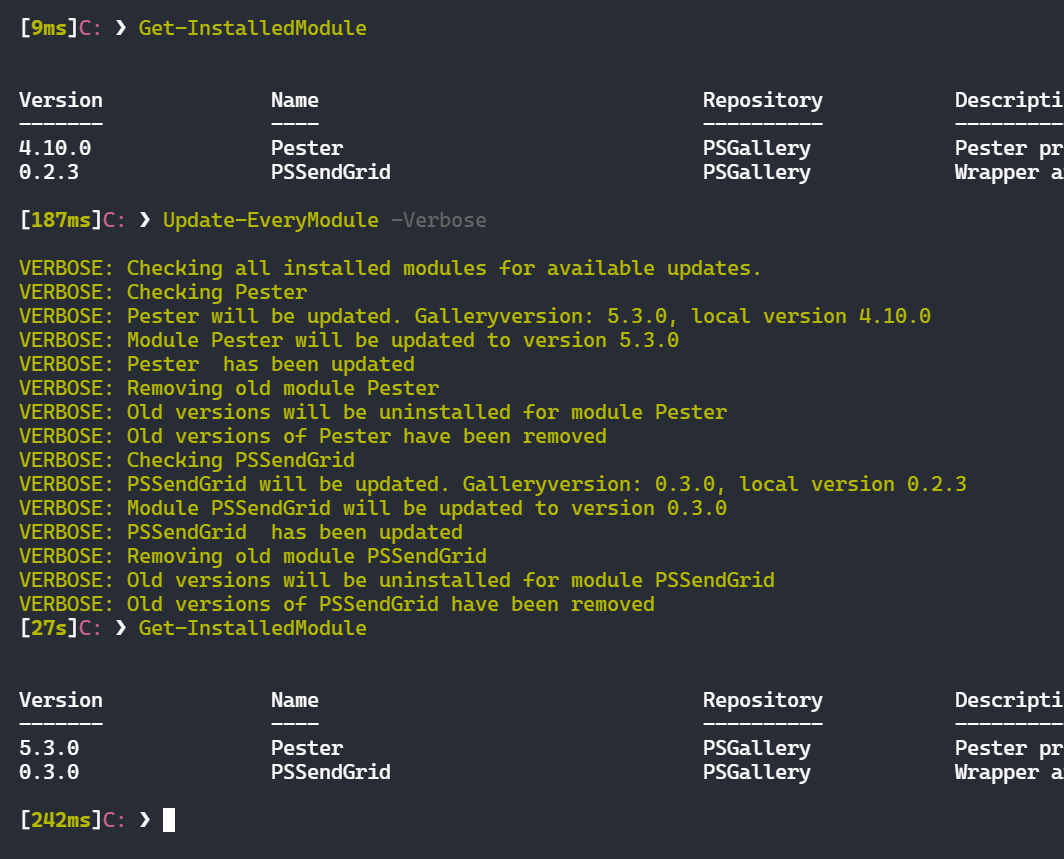
I run the script manually about once a week. I have made a part of a personal module that I import, but you can also do it with dot sourcing. After it is loaded, you can run the Update-EveryModule cmdlet. But of course the better solution is to automated it completely! You can do that with a schedule task for example. In this post, I show how you can make one with PowerShell.
If you want to automatically update all modules in an Azure Automation account, you can do so by using the script I wrote about here.
The script
You can find the script here
Conclusion
So this is how you can update all PowerShell modules on a system. If you have any questions, leave them in the comments!